IPTV Smarters is one of the most user-friendly IPTV player applications that provides you the facility to watch Live TV, VOD, Series, Catchup, and Multi-Screen on your Android Devices (Mobiles, Android Boxes, Fire TV Stick, etc.). One of the most interesting features in IPTV Smarters is Catchup. They are not many applications that provide Catchup, before we only have this feature in MAG boxes. Also, you have a Multi-Screen feature in which you can watch up to 4 channels simultaneously.
You can add IPTV channels to IPTV Smarters in two ways:
Setup IPTV Smarters via Xtream Codes API
We recommend setup via Xtream Codes API because you will have the Catchup feature this way and also do not need to add any EPG URL (it will load automatically).
STEP 1:
Start by downloading IPTV Smarters app from the Google Play Store through this URL:
https://www.iptvsmarters.com/iptv-smarters-5.0.apk
install the app on your Android device.
STEP 2:
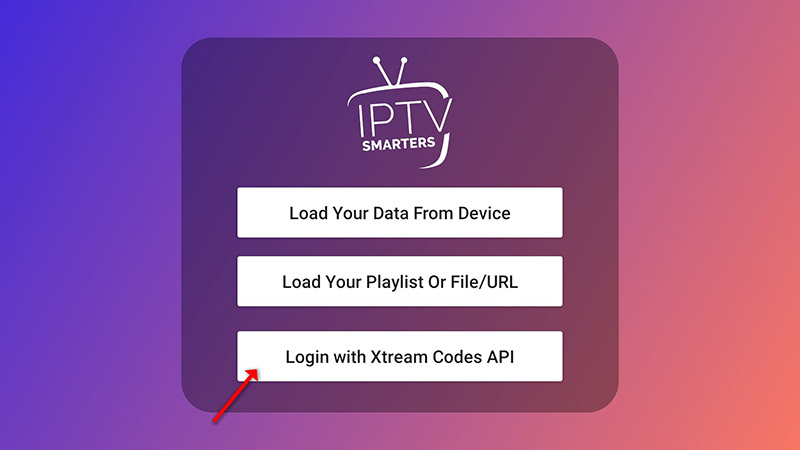
Open the app once downloaded and click on “Add user” then click on “Login with Xtream Codes API“.

STEP 3:
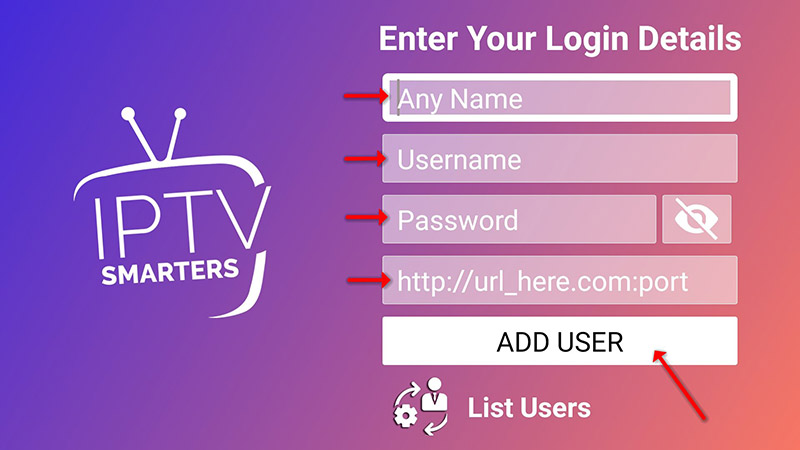
In this step, in the first box, select any name you want for example “IPTV Xtream”. On the second and third boxes, enter the “Username” and the “Password” of your M3U line and the server URL which can also be found on your M3U line.
Now Click on “ADD USER” to proceed to the next section.

STEP 4:
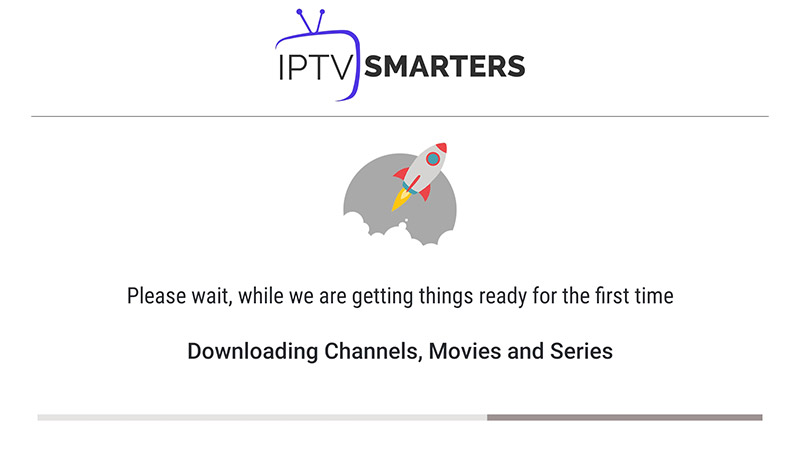
Wait some seconds.

STEP 5:
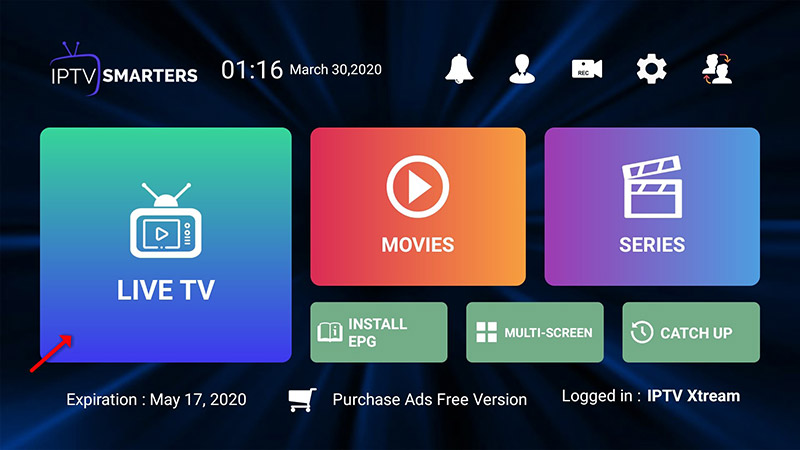
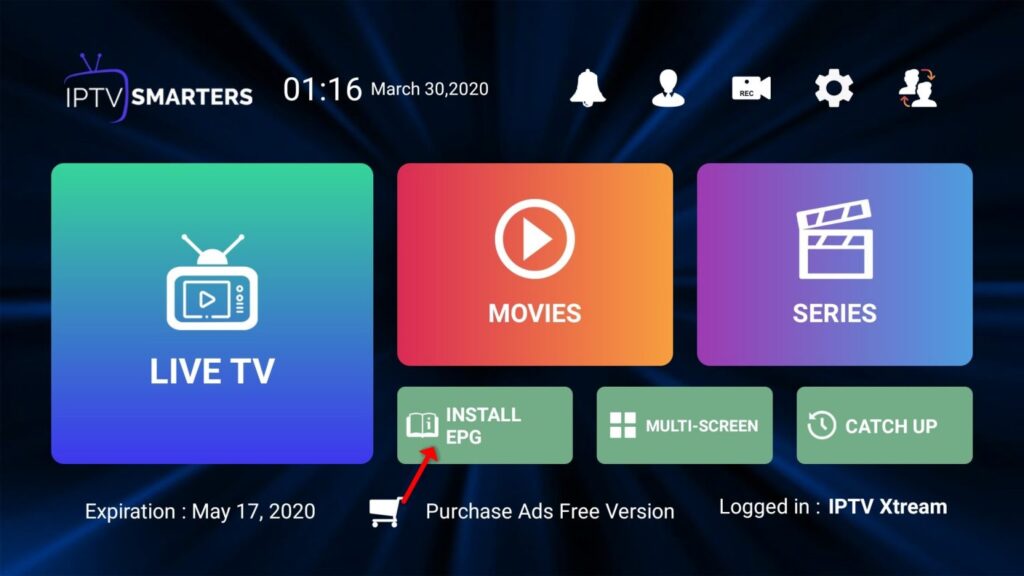
Now click on the “Live TV” icon as depicted in the image via a red arrow.

STEP 6:
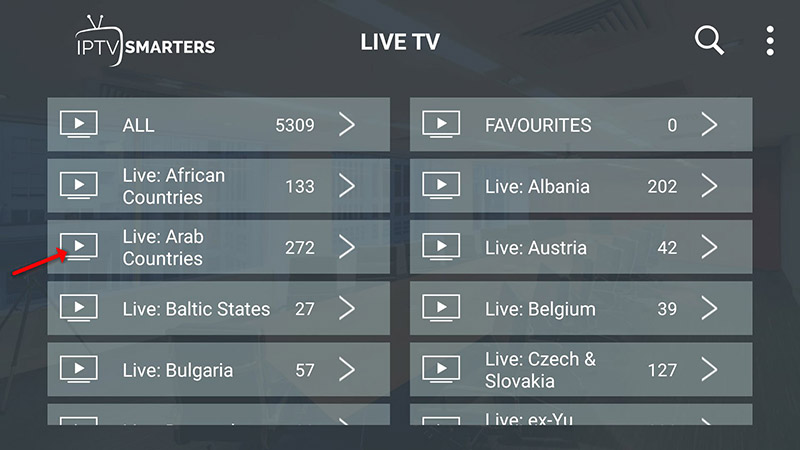
Now you must select the channel group that you want to watch and proceed to the next section.

STEP 7:
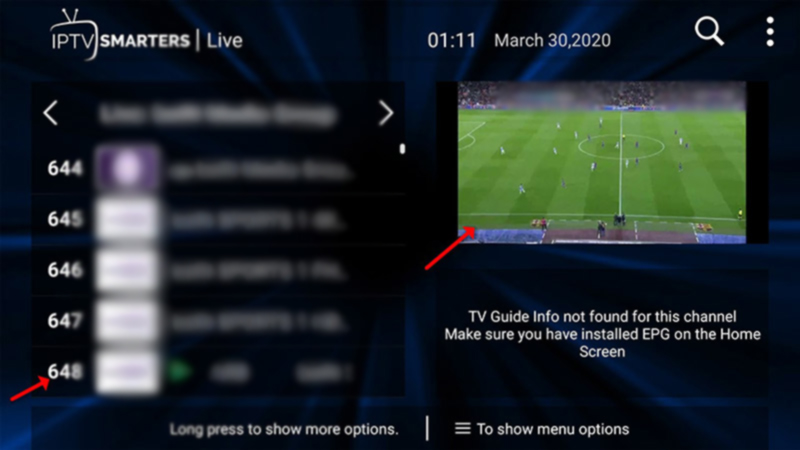
Now you must click on the channel name and then double click on the small screen to turn into the full screen as the final step.

STEP 8:
To add EPG no need to add any EPG URL, Just click on “Install EPG“.

Setup IPTV Smarters via Playlist
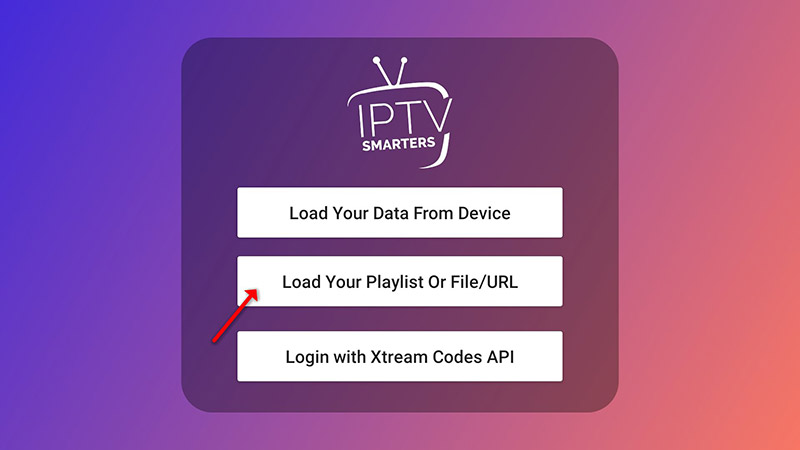
If you don’t have an Xtream Code API, you can use an M3U URL and choose to Load Your Playlist or File URL.
STEP 1:
Open the app once downloaded and click on “Add user” then click on “Login with Playlist“.

STEP 2:
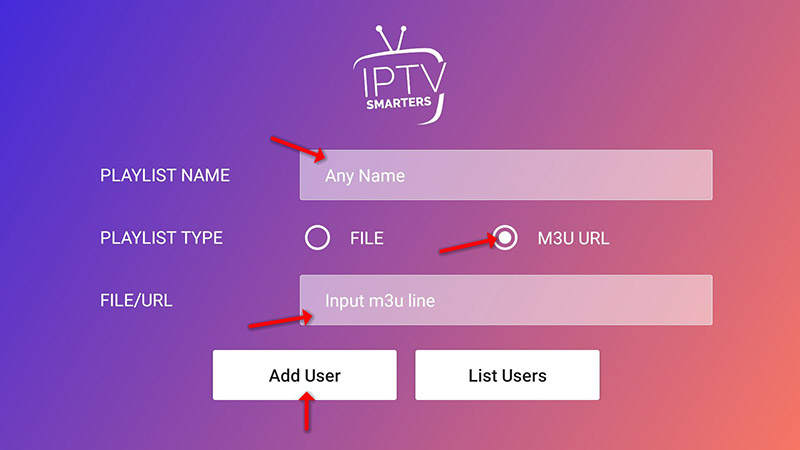
In this step, in the first box, select any name you want for example “IPTV Playlist”.
Select “M3U URL” and enter the M3U URL which you get from your IPTV provider.

STEP 3:
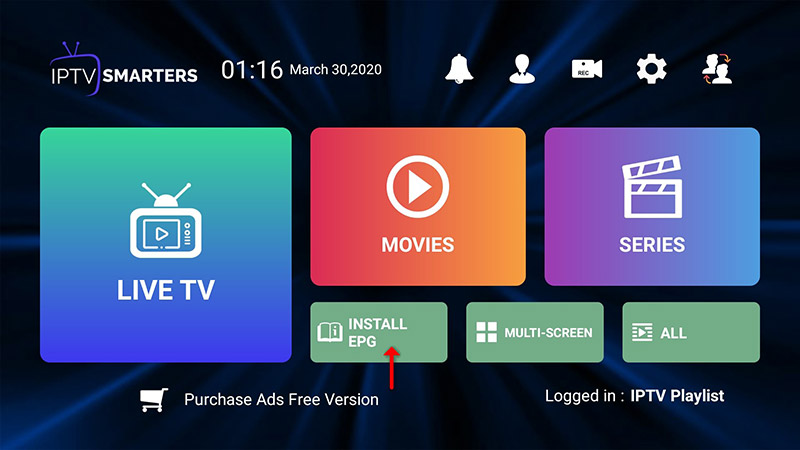
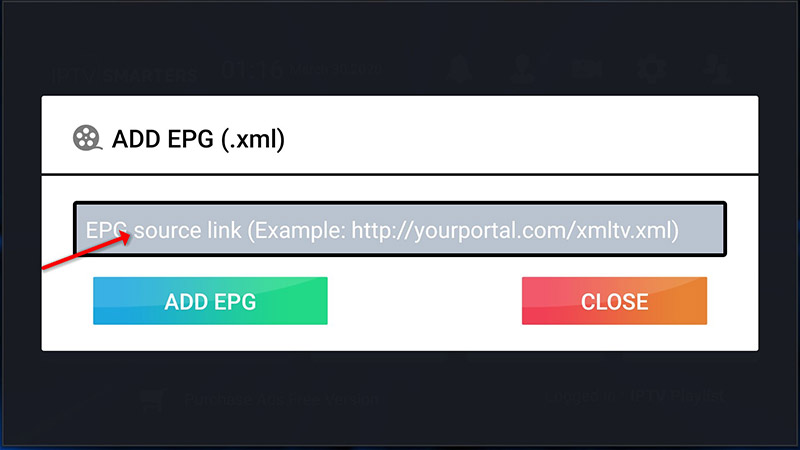
To add EPG click on “Install EPG” and enter the EPG url.


STEP 4:
Now click on the “Live TV” icon, select channels group then the channel you want to watch.
IPTV Smarters is an incredible video streaming player explicitly developed for end-users who want to watch live TV, VOD, Series, and TV Catchup on their Smart TV. This video player app is easy to use yet highly efficient, featuring a powerful player, an attractive, very impressive layout, and, most importantly, a user-friendly interface.
Step 1: Access the Source
Press the Source button on your Samsung remote to get started.
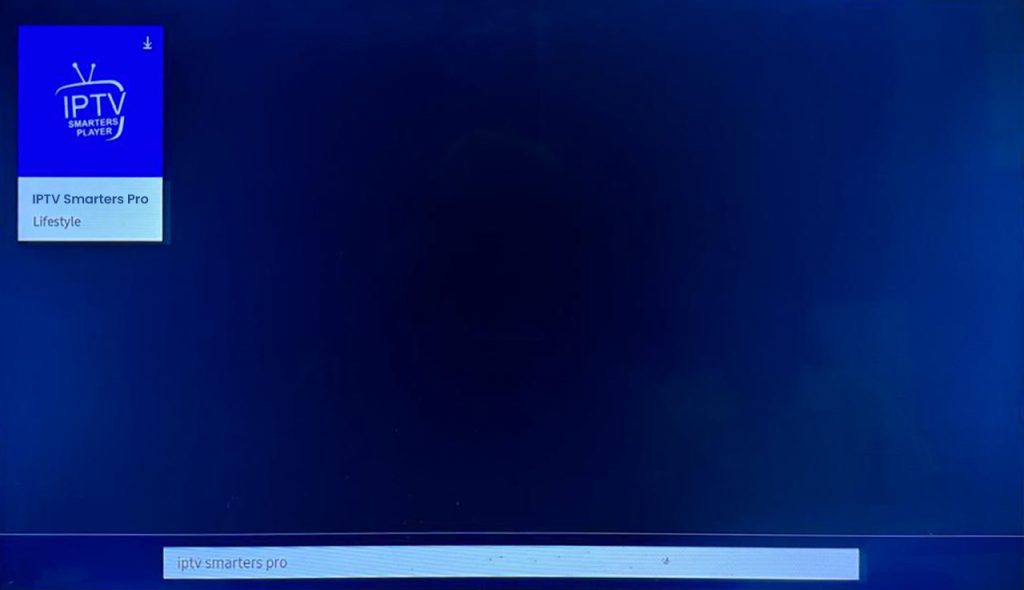
Step 2: Download IPTV Smarters Pro
Navigate to Search and type in IPTV Smarters Pro to download the app.
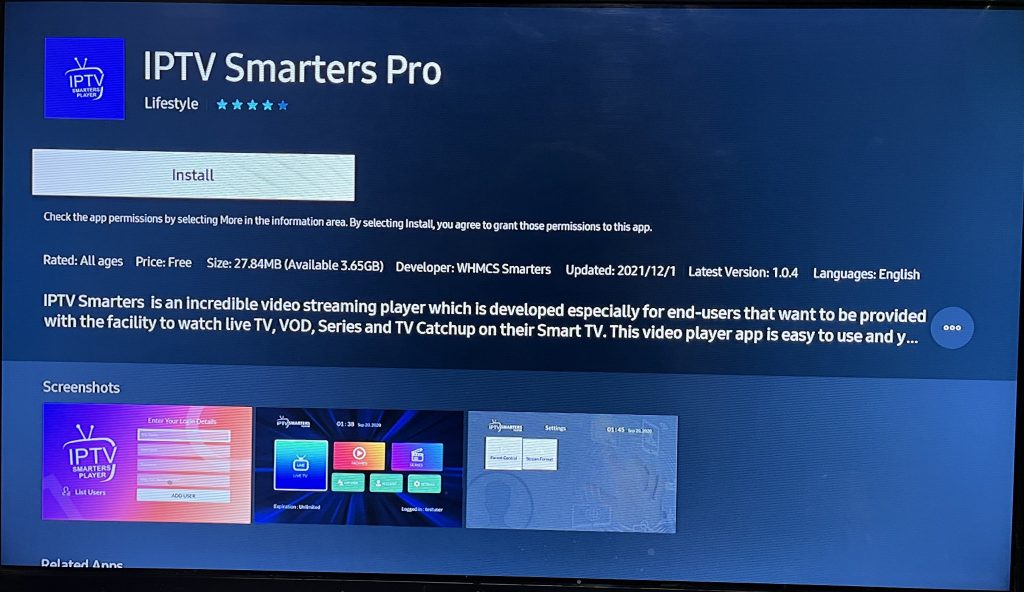
Step 3: Log In to the AppOpen the application and log in using your subscription details: Username, Password, and Portal URL.
Important Note:
Ensure that your service provider has their DNS registered with us for optimal performance.
Please be aware that the Premium Version features are not available on Samsung Smart TVs.
Step 1: Access the Home Menu
Press the Home button on your LG remote to begin.
Step 2: Open the LG Content Store
Please navigate to the LG Content Store and open it.
Step 3: Download IPTV Smarters Pro
Select the Search button, then type IPTV Smarters Pro to download the app.
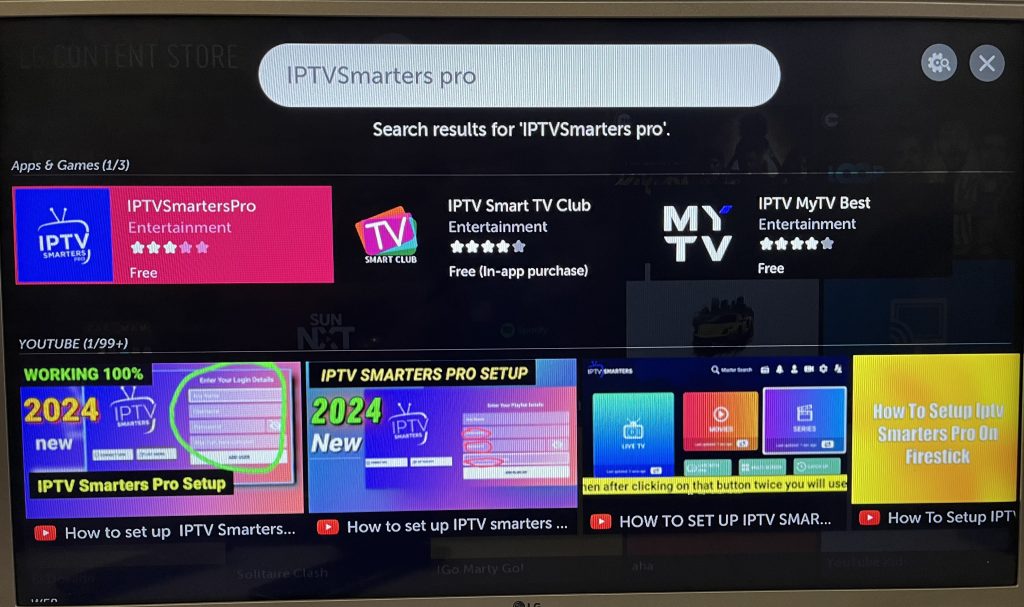
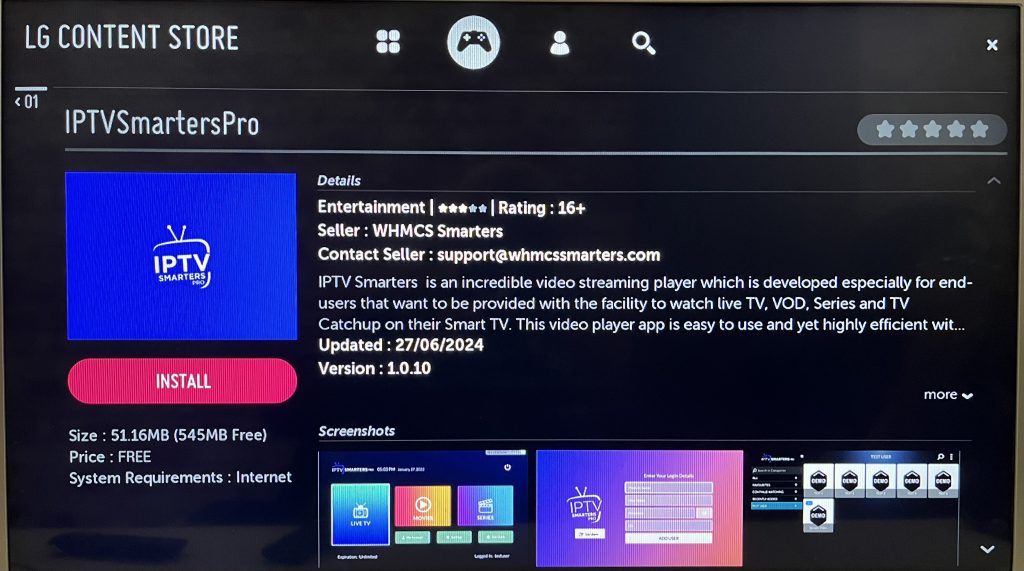
Step 4: Log In to the ApplicationOpen the application and log in using your subscription details: Username, Password, and Portal URL.
Important Note:
Please ensure that your service provider has their DNS registered with us for optimal performance.
Note: Premium version features are not available for LG Smart TVs.
GSE SMART IPTV app is one of the most popular streaming apps for IPTV. The app itself does not include any channels so you’ll need an active M3u playlist to stream live TV channels and movies. You can find free M3U URLs online and in forums but also have the choice to purchase paid M3U subscription which may be more reliable.
For this tutorial to work you’ll need an active M3U playlist. Next, you’ll need to download the GSE SMART IPTV app (here’s the link to the app store)
STEP 1:
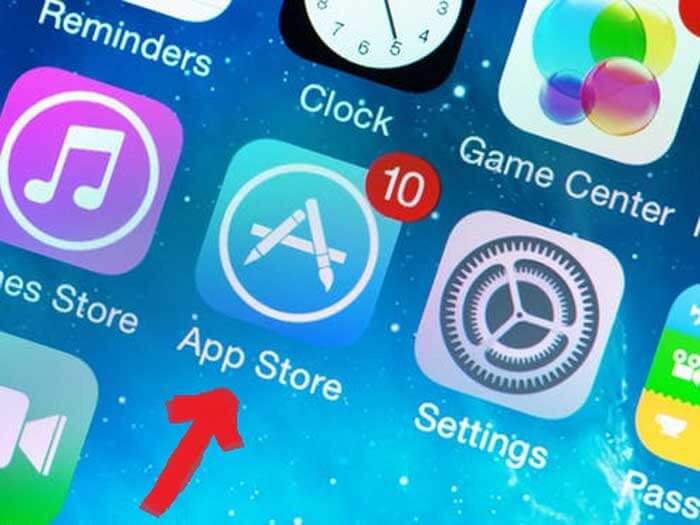
Locate and open the App Store on your iPhone/iPad/Apple TV.

STEP 2:
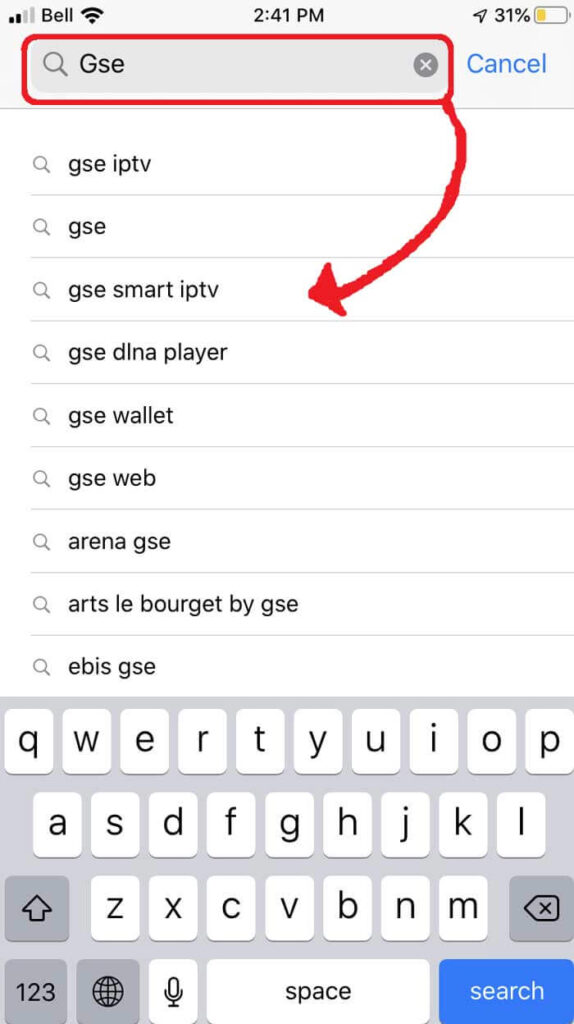
Next, search for the GSE SMART IPTV app.

STEP 3:
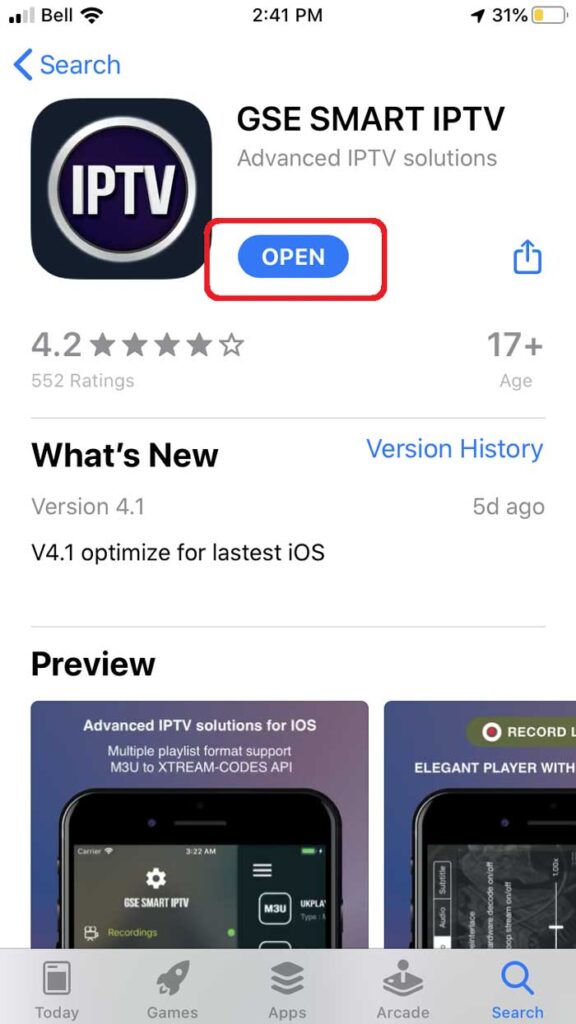
Select the GSE SMART IPTV app developed by droidvision. The tagline for the app is ‘Advanced IPTV solutions’. Note the app size is 104.5 MB.

STEP 4:
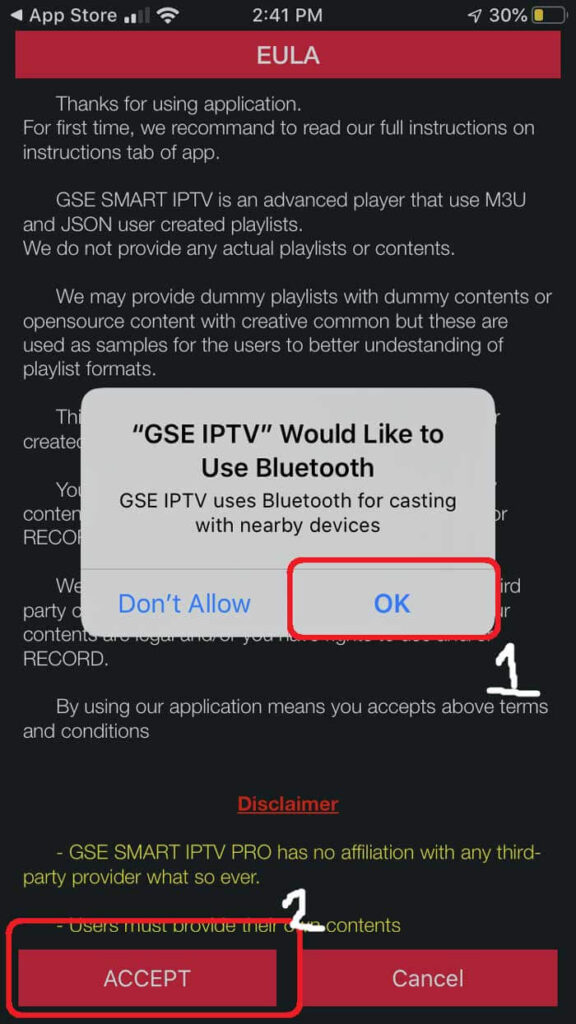
Once you’ve installed the GSE app, go ahead and open it and allow for Bluetooth connectivity. This way you can cast your screen from iPhone or iPad directly to your TV via Google Chromecast.

STEP 5:
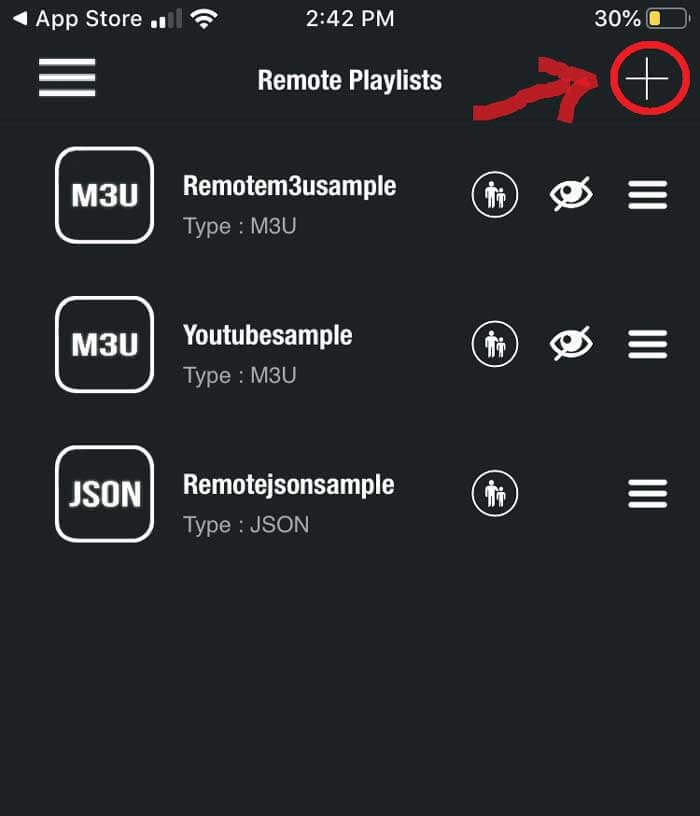
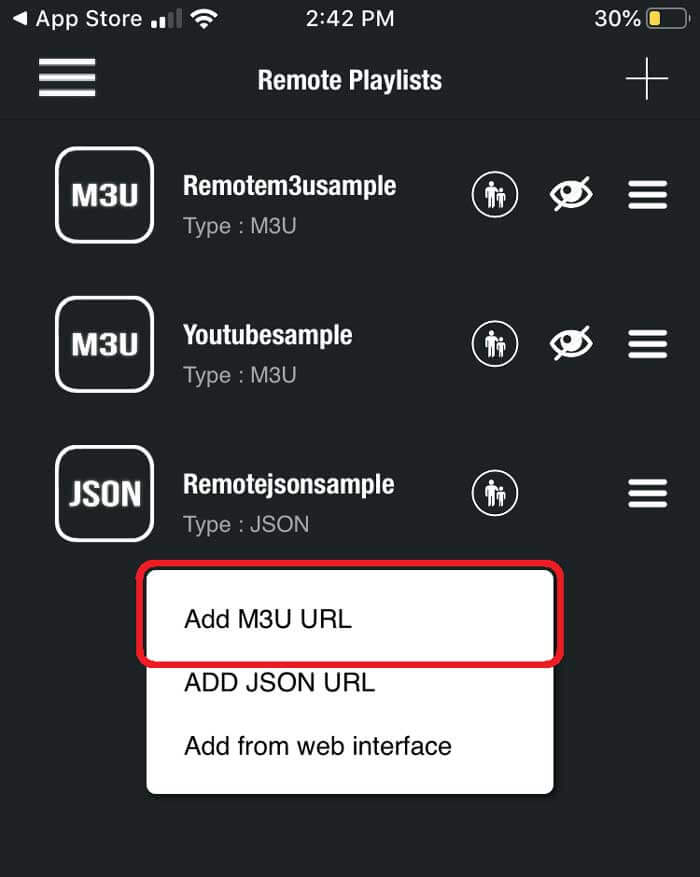
Under the remote playlist section, you will see Plus sign on the upper right-hand side. Press this button. Alternatively, you can go into the menu to add your M3U playlist.

STEP 6:
Here it will ask if you’d like to Add an M3U URL, Add Json URL, or add from the web interface. Go ahead and select add M3U URL option.

STEP 7:
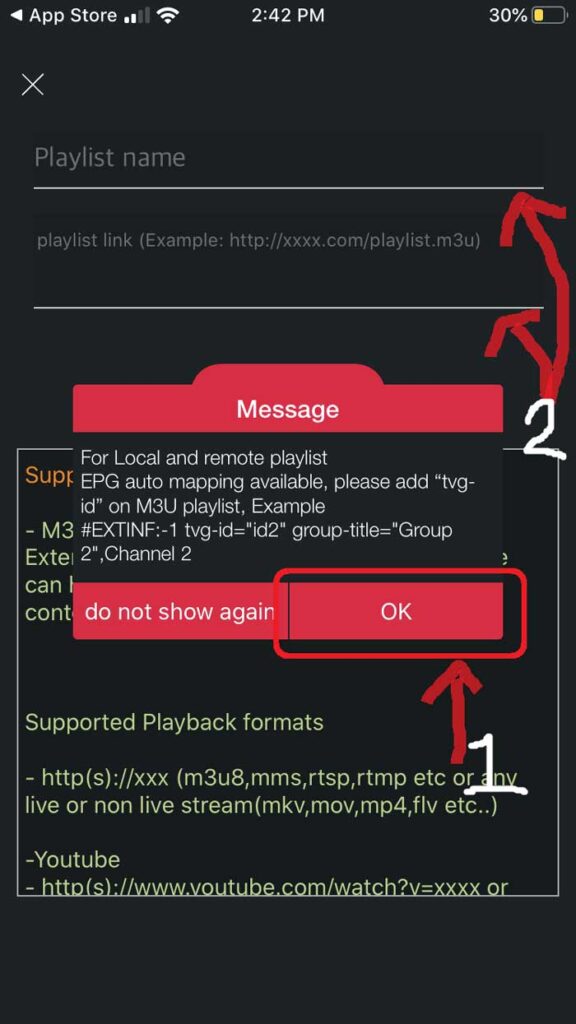
For playlist name, we can write anything as this is just for reference for loading this particular URL from the playlist manager. The playlist link is the actual URL we’ll need to copy and paste into here.

STEP 8:
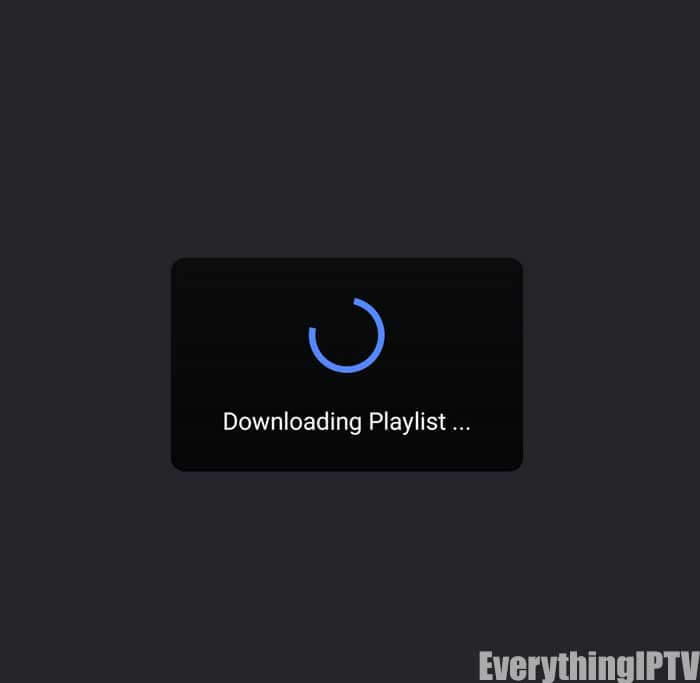
Once entered it should download the playlist. If it does not, go back to the playlist manager menu (SEE STEP 5). Here you should see the M3U URL file we just uploaded. Tap it to load the playlist created.

STEP 9:
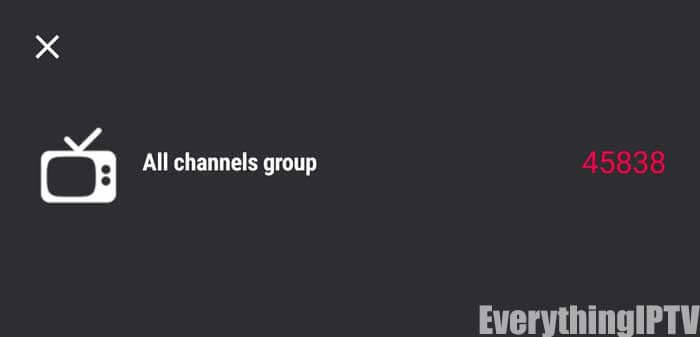
You’ll know it’s successfully loaded if you see the different channel groups. You have successfully configured the GSE SMART IPTV app and ready to start streaming!

You will need to use the controller app named as “Smart IPTV” to proceed with configuration. You can get it for seven days for free. Then you can make a one-time fee of € 5.49 and start using it.
Please send us your MAC address by replying to your order confirmation email.
You can purchase Your Subscription Here if you have not already done so.
1. Start IPTV Setup on Mag – Go to Menu – Then Settings – Then System Settings
2. Click on Servers – Then Portals – Then Set Portal 1, and please enter the link you received in your order completion emai,l which looks like: http://example.link/c/
Then Reboot Portal.
3. After uploading, reboot the device
4. Wait until the TV Screen shows the Channel
Press the “1” button and “OK” on the remote controller to confirm that the channel lists are empty
Note: If your portal doesn’t load, the playlist might be too extensive for your box to process.
Please get in touch with us and let us know which countries you need, and we will remove the rest to reduce the playlist size.
Note: Make sure to purchase Smart STB app from their website since it’s a paid app
This tutorial can help you to do the configuration on Formuler/AVOV Box
We will be using an app called TV Online to get the job done.
Here are the steps to configure TV online
If you have any issues, you need to restart Formuler/AVOV Box along with Wi-Fi Router.